Scientific data 3 min read
Explore an HDF5 file
Install the scientific I/O workflow, invoke its dataset skill, and watch your agent inspect a file through the HDF5 MCP.
- Written for
- CLIO Kit 2.11
- Works in
- Claude Code · Codex · Clio Coder · OpenCode
- Basis
- Recorded sessions · 7 Oct 2026
Install a workflow, open your agent, and ask what is inside a scientific data file. This walkthrough uses the clio-scientific-io components, the dataset-explore skill and the HDF5 MCP. You finish with a short report you can check against the input.
The screenshots come from real sessions recorded on 7 October 2026 in disposable folders: Claude Code 2.1.293 (Opus 5.5), Codex 0.160.1 (GPT-6-Astra), Clio Coder 0.6.1 (Claude Opus 5.5) and OpenCode 1.18.35 (GPT-5.6 Terra). Each client ran in its permission-bypass mode inside those folders; keep approvals on in your own projects. Pick your client once and every tutorial follows it.
1. Create a file you can check
First install the CLIO Kit launcher from your checkout. Make a new folder, download create_dataset.py into it, and run:
mkdir hdf5-demo
cd hdf5-demo
uv run --no-project --with h5py python create_dataset.py
The script creates simulation.h5 and refuses to replace an existing file. It
holds a five-element time axis in seconds and a (5, 4, 3) temperature array in
kelvin. The first three temperatures are 273.15, 274.15 and 275.15, so you can
check the agent's answer.
2. Install, ask and follow the tool calls
Replace /path/to/clio-kit with your checkout.
- Claude Code
- Codex
- Clio Coder
- OpenCode
clio-kit plugin install clio-scientific-io \
  --root /path/to/clio-kit --client claude-code --project "$PWD"
claude
The installer adds three skills to .claude/skills and four MCP servers to
.mcp.json: HDF5, ADIOS, Parquet and Compression. Trust the folder, enable the
project MCP servers when asked, then paste:
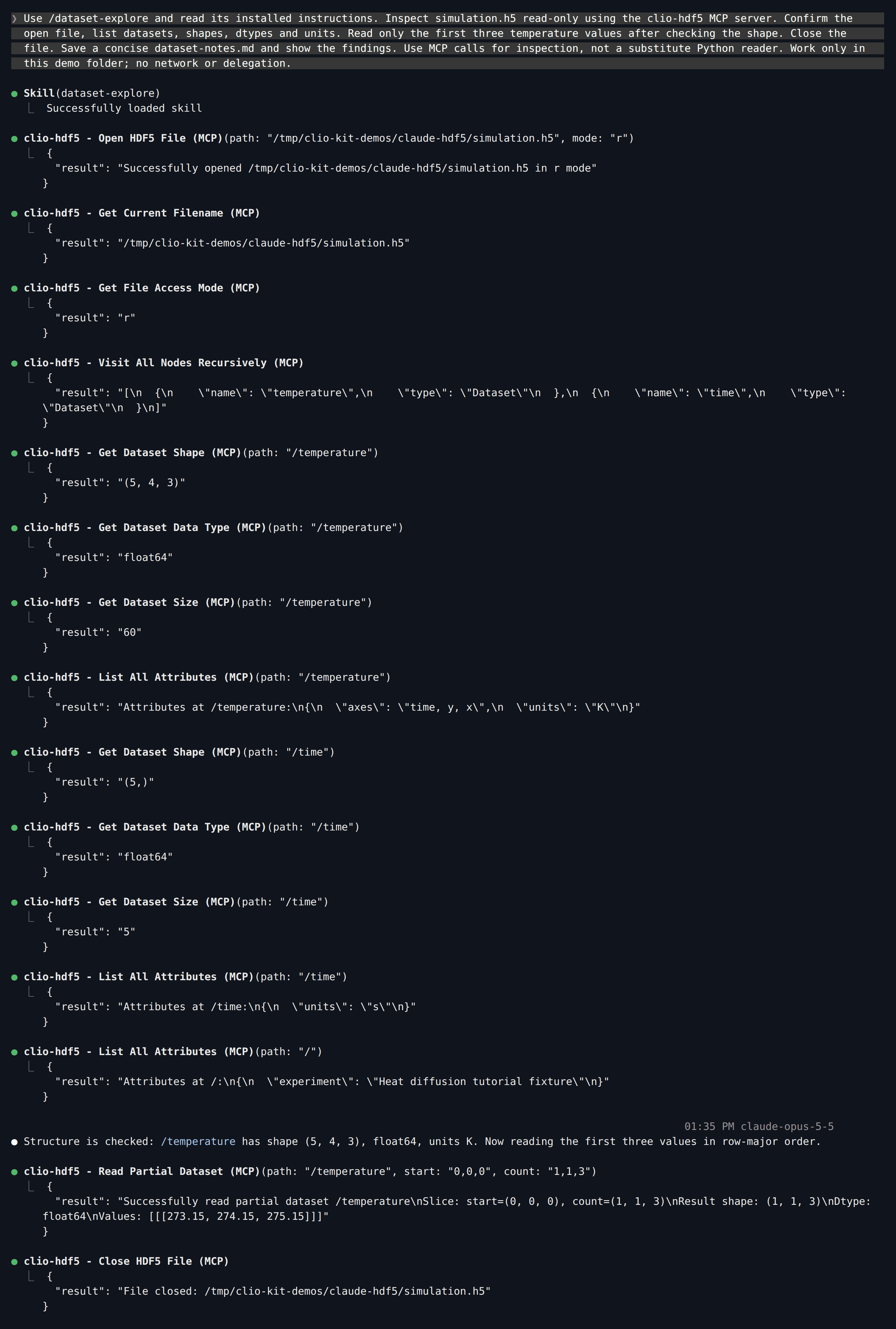
Use /dataset-explore and read its installed instructions. Inspect simulation.h5 read-only using the clio-hdf5 MCP server. Confirm the open file, list datasets, shapes, dtypes and units. Read only the first three temperature values after checking the shape. Close the file. Save a concise dataset-notes.md and show the findings. Use MCP calls for inspection, not a substitute Python reader. Work only in this demo folder; no network or delegation.
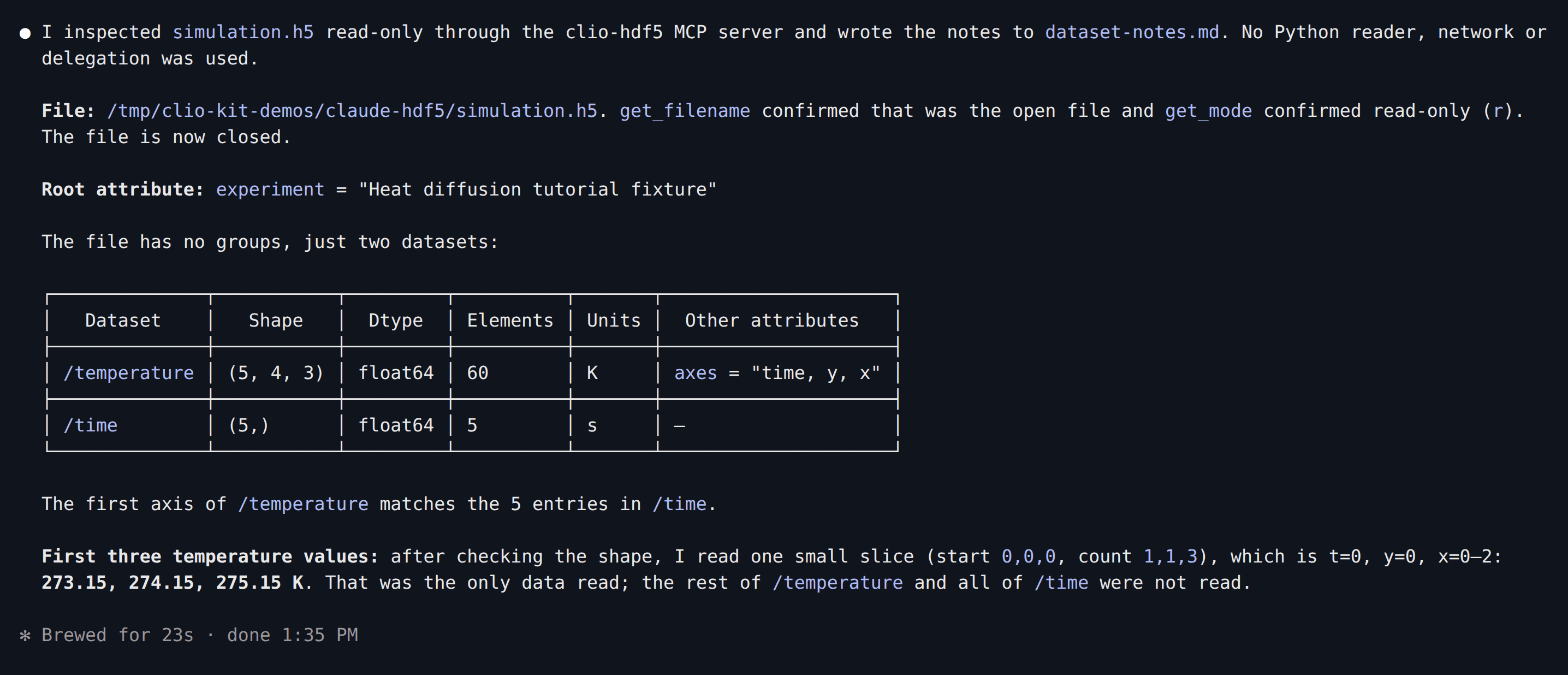
Claude loads the skill, then calls the HDF5 tools one by one. Press Ctrl+O for
the detailed transcript shown here:
clio-kit plugin install clio-scientific-io \
  --root /path/to/clio-kit --client codex --project "$PWD"
codex
The installer adds three skills to .agents/skills and four MCP servers to
.codex/config.toml. Trust the folder, check /mcp, then paste:
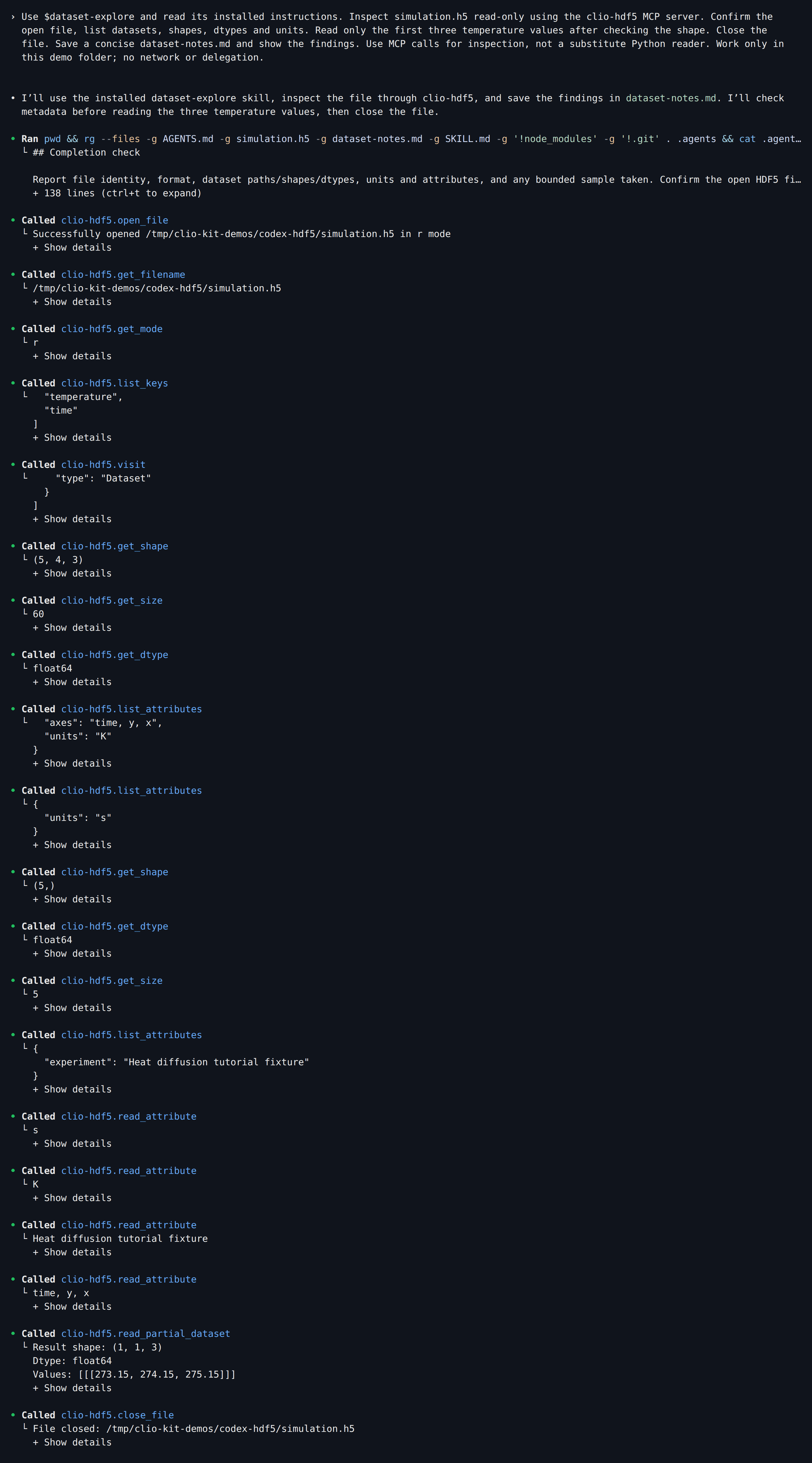
Use $dataset-explore and read its installed instructions. Inspect simulation.h5 read-only using the clio-hdf5 MCP server. Confirm the open file, list datasets, shapes, dtypes and units. Read only the first three temperature values after checking the shape. Close the file. Save a concise dataset-notes.md and show the findings. Use MCP calls for inspection, not a substitute Python reader. Work only in this demo folder; no network or delegation.
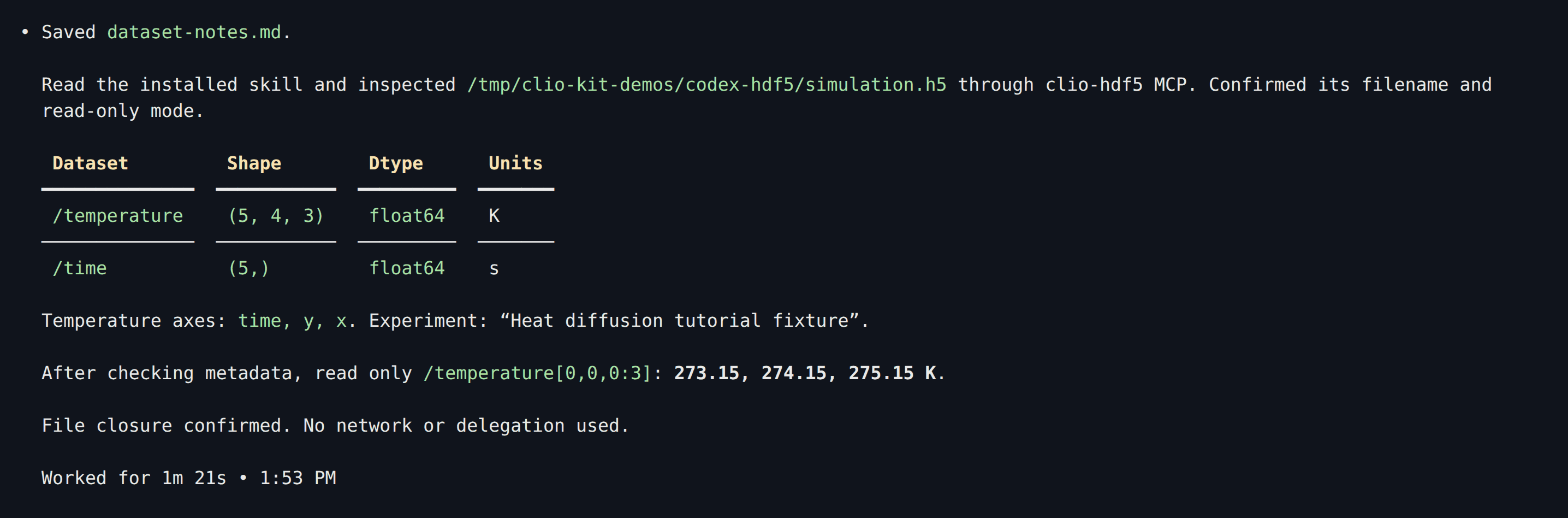
Codex lists each MCP call as Called clio-hdf5.<tool>:
Clio Coder reads project MCP servers from .clio-coder/mcp.yaml and loose
project skills from .clio-coder/skills. Save this file as
.clio-coder/mcp.yaml:
version: 1
servers:
  - id: clio-hdf5
    command: clio-kit
    args: [mcp-server, hdf5]
    timeoutMs: 120000
Then trust the declaration, add the skills and start a session:
clio-coder mcp trust clio-hdf5
clio-kit skill install dataset-explore --target .clio-coder/skills
clio-kit skill install large-data-read --target .clio-coder/skills
clio-coder
A project server does not launch until you trust it. Paste:
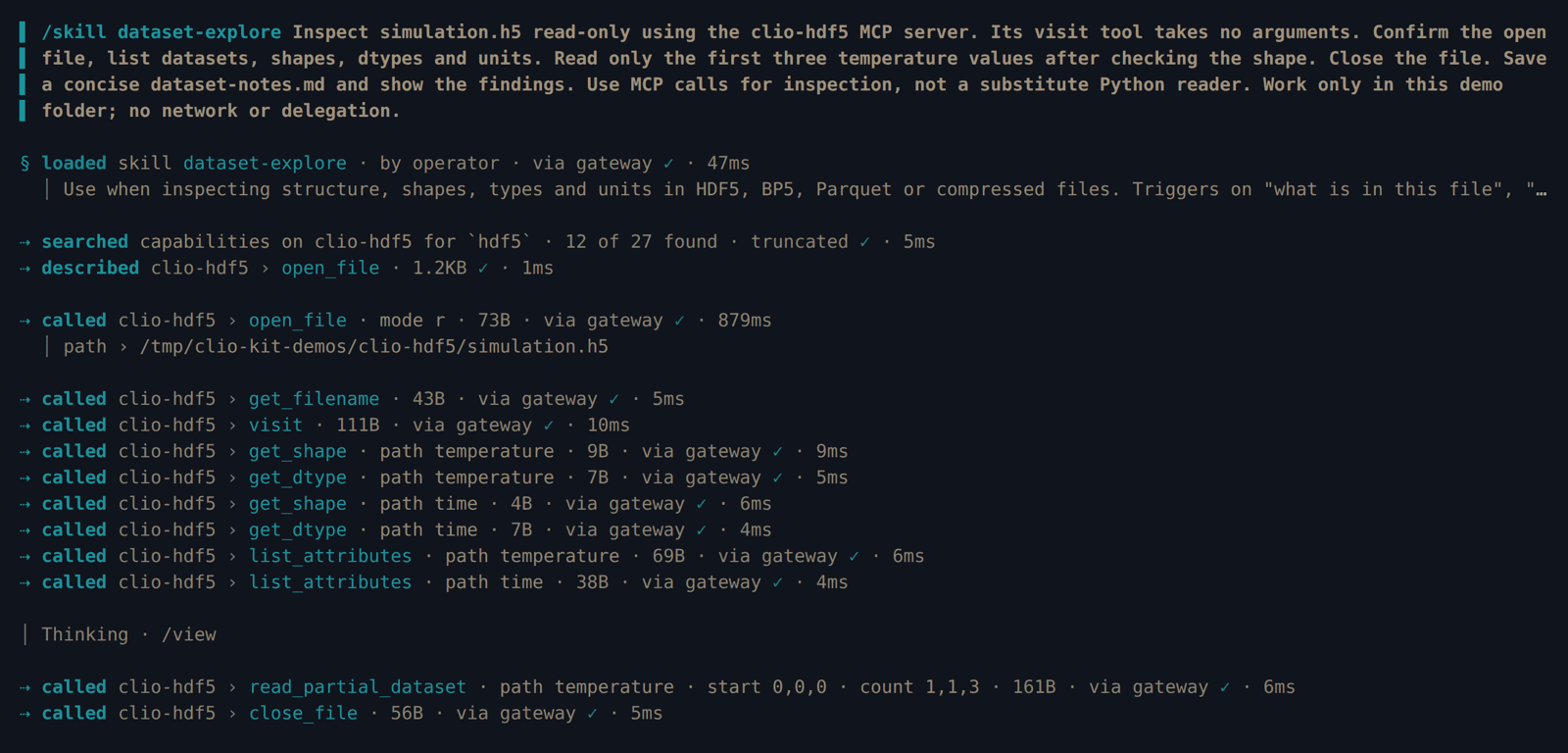
/skill dataset-explore Inspect simulation.h5 read-only using the clio-hdf5 MCP server. Its visit tool takes no arguments. Confirm the open file, list datasets, shapes, dtypes and units. Read only the first three temperature values after checking the shape. Close the file. Save a concise dataset-notes.md and show the findings. Use MCP calls for inspection, not a substitute Python reader. Work only in this demo folder; no network or delegation.
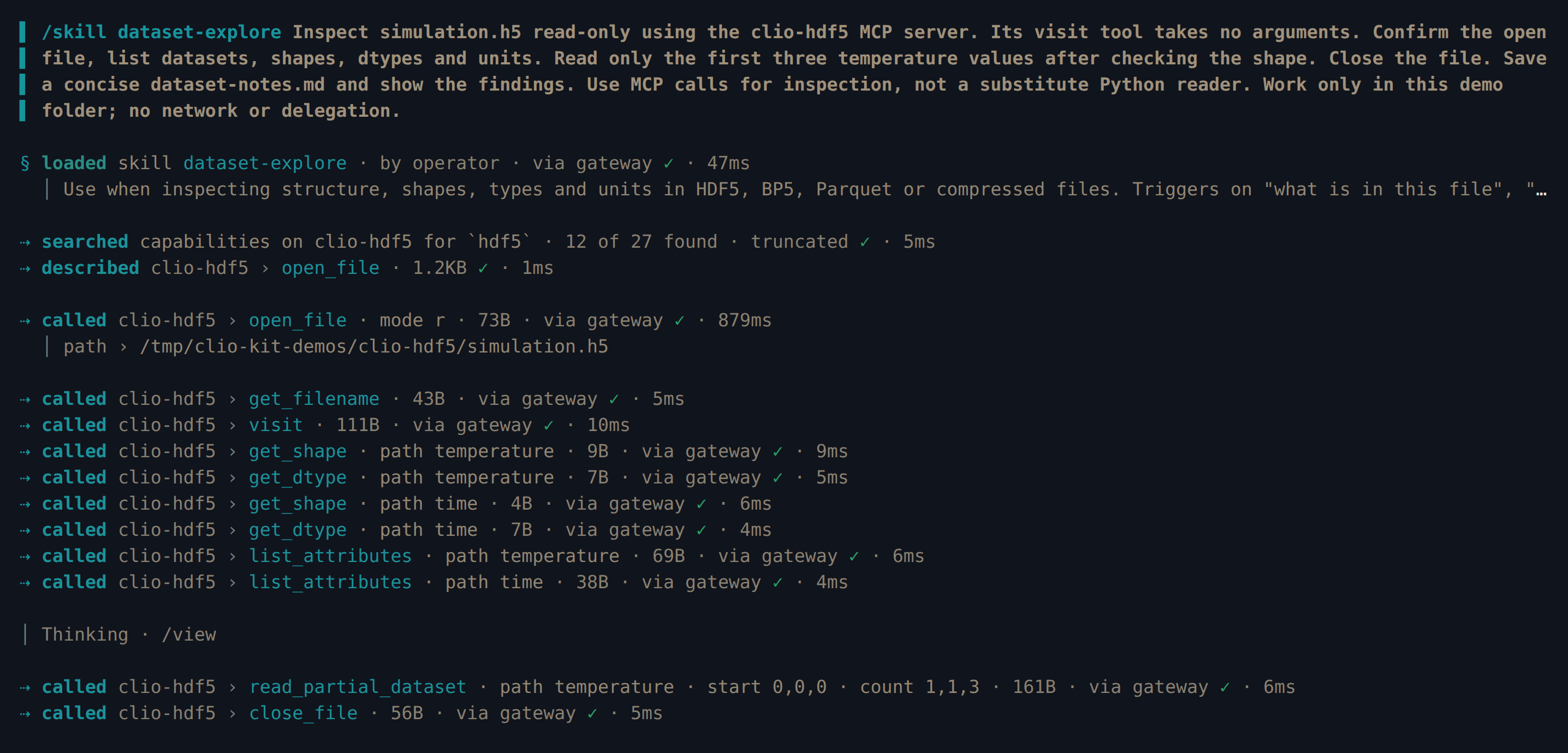
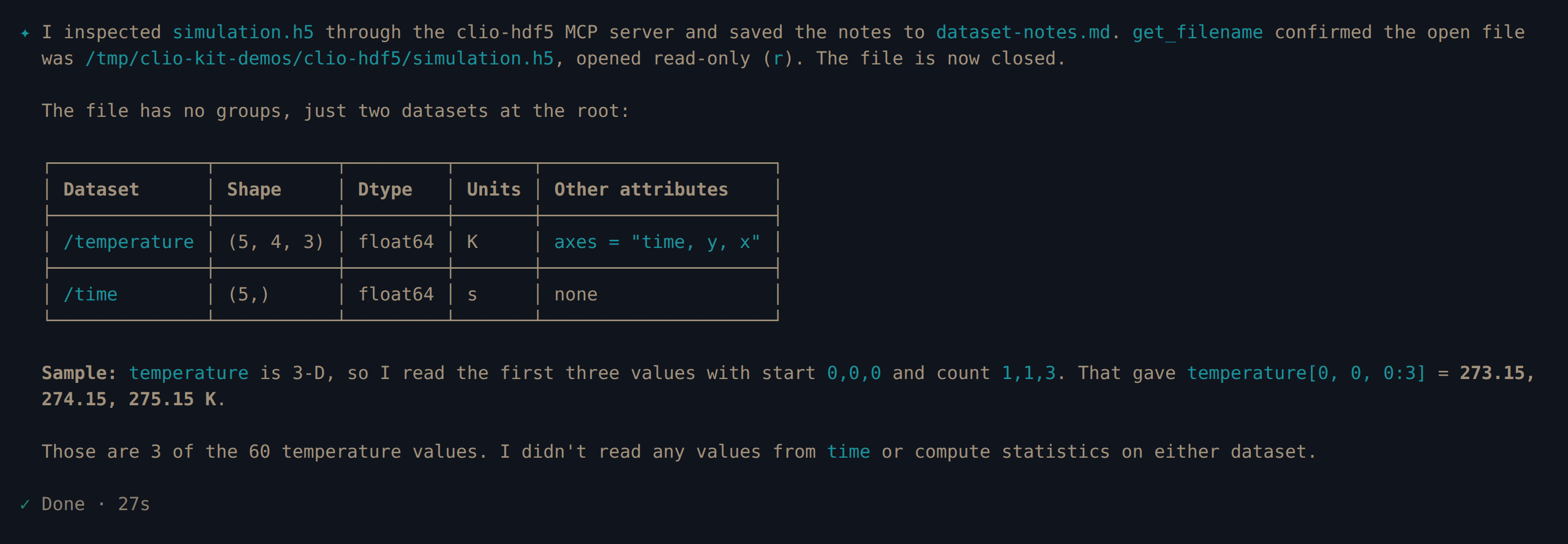
Clio reaches MCP tools through its gateway, so it describes a tool before calling
it. The note about visit saves one rejected call: unlike the other HDF5 tools,
visit takes no path.
clio-kit plugin install clio-scientific-io \
  --root /path/to/clio-kit --client opencode --project "$PWD"
opencode
The installer adds three skills to .agents/skills and four local MCP servers to
opencode.json. Check that they show as connected in the sidebar, then paste:
Use the dataset-explore skill and read its instructions. Inspect simulation.h5 read-only using the clio-hdf5 MCP server. Confirm the open file, list datasets, shapes, dtypes and units. Read only the first three temperature values after checking the shape. Close the file. Save a concise dataset-notes.md and show the findings. Use MCP calls for inspection, not a substitute Python reader. Work only in this demo folder; no network or delegation.
OpenCode shows each MCP call as ⚙ clio-hdf5_<tool> with its arguments:
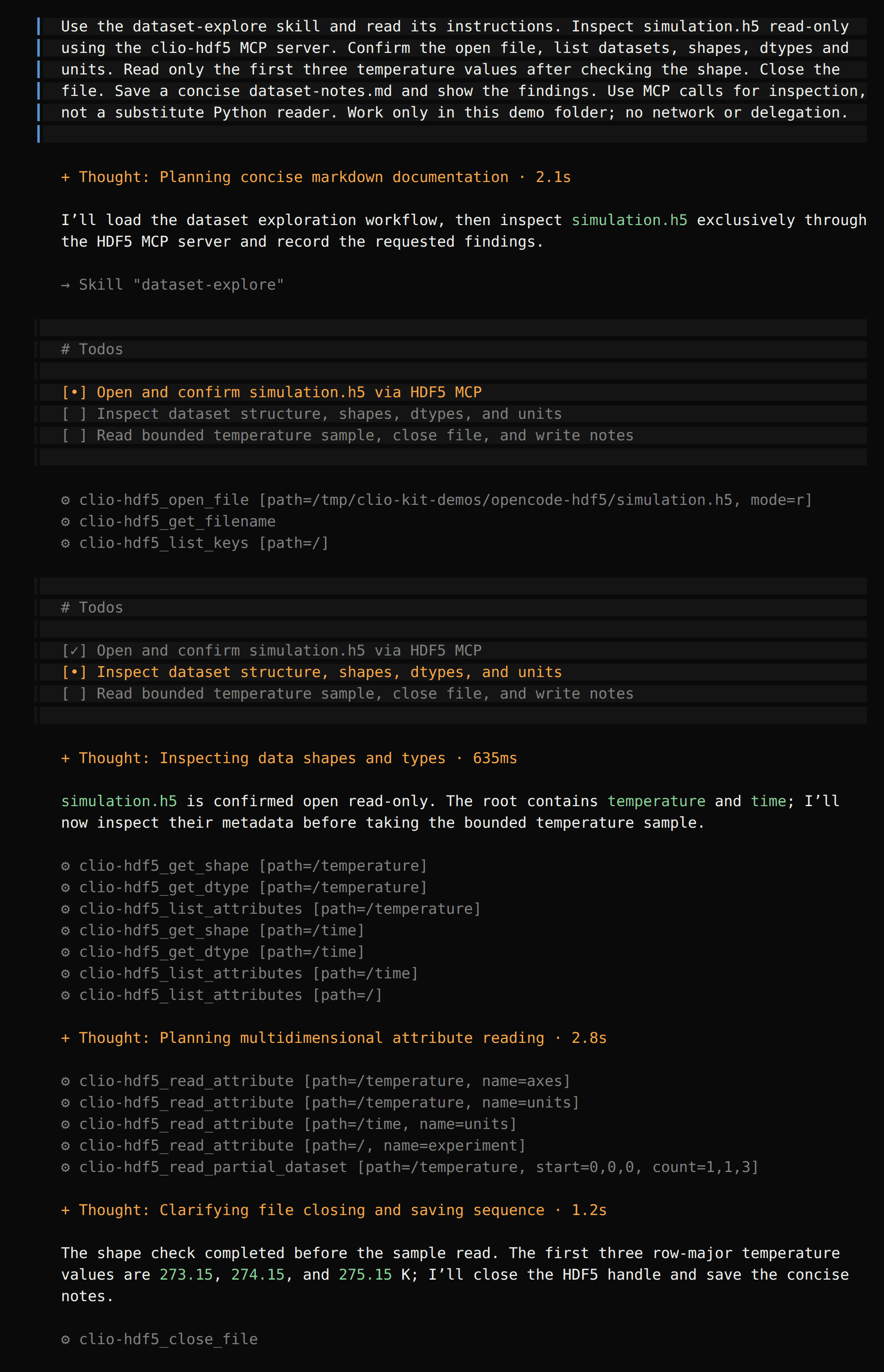
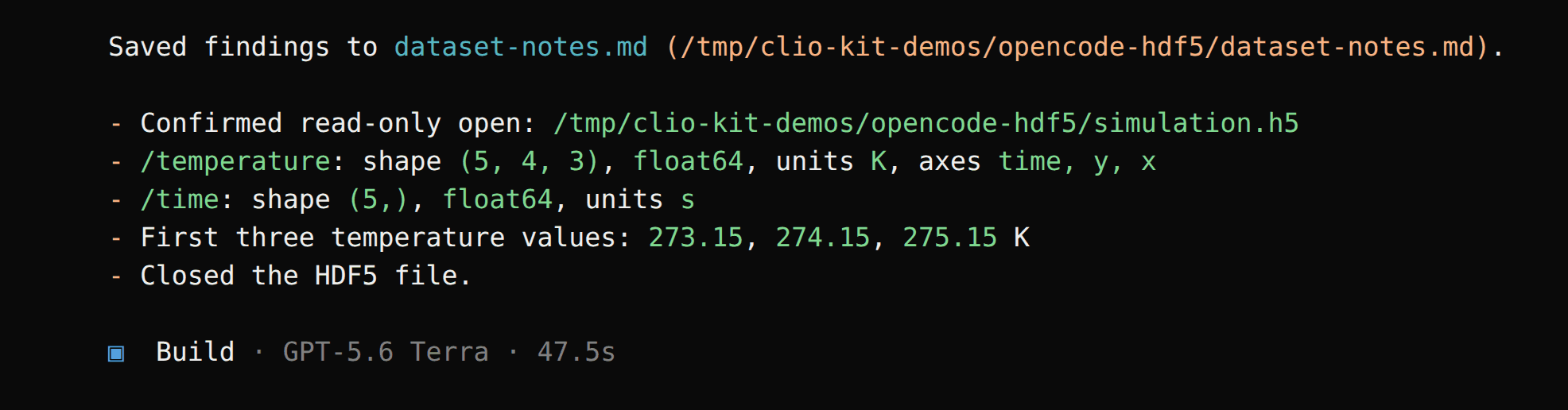
The skill's useful part is the order: check structure and units before
reading values. Every client asked for a start="0,0,0", count="1,1,3" slice
instead of pulling the whole array into the conversation.
Select a screenshot to open it at full size. These are captures of the actual terminal sessions, not recreated conversations.
3. Check the result
cat dataset-notes.md
Your report should identify:
| Dataset | Shape | Type | Units |
|---|---|---|---|
/time | (5,) | float64 | seconds (s) |
/temperature | (5, 4, 3) | float64 | kelvin (K) |
Check that the sample is 273.15, 274.15, 275.15 and that the file was closed.
After the four recorded sessions we checked each saved report against these
known values. A correct-looking report alone is not that check.
For your own file, keep the same request but use its path. If it is large,
inspect shape and dtype first and use the large-data-read skill for bounded
reductions.
If the MCP is unavailable, run clio-kit doctor --server hdf5 --connect, check
the client's PATH and reload the project. An installed skill does not replace a
missing MCP connection.
Next: archive and summarize a dataset, summarize and plot a CSV, or contribute your own plugin.